
Matrix Element Setup
Getting Started
Welcome, This guide should get you set up using our Element Community Instance. Select your device in the contents list to skip to it, or simply scroll to find it. I Don't use MacOS or IPhones, so I cannot test this and by extension set up a guide. If anyone volunteers to make one I'll add it here at such a time, however Element X App should work on IOS.
Mobile App
For advanced users, you probably know this but more than just Element X can connect to Synapse Servers, however we use the Element Call and MatrixRTC backends, so I cannot guarantee functionality outside of Element X.
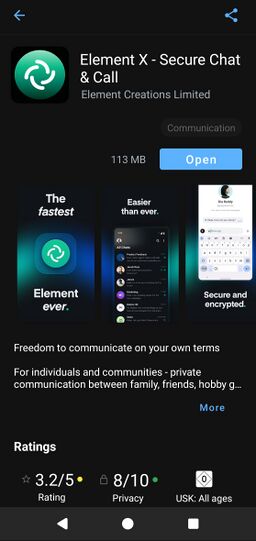
- Install Element X from your App Repository of choice (Google Play for regular Android). Make sure it is from the company "Element Creations Limited".
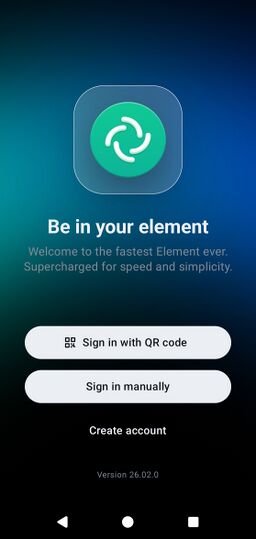
- Open the app, you will be greeted by the sign in page, Click "Create account".
- Click "Change account provider", then "Other" next to the magnifying glass. Input
matrix.atarkacomms.orgin the Account Provider field, this will target the server privately owned by me. Select it from the list it creates (There's only normally one option here anyway).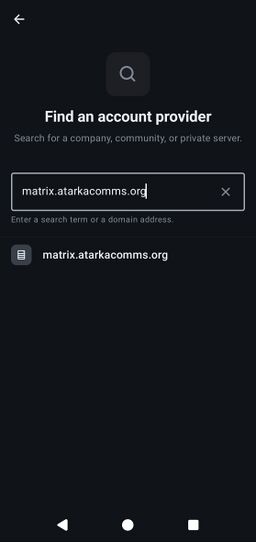
- Create your account, as I did with burner1 here. Note that your username is what you log in with, you can set a different Displayname later. In my case this means I used "lasse" as my username because it's easy to type, but I use "Lasse Ker'Khan" as my Displayname. If you're going to use your Real Name, be aware anyone on the atarkacomms server can see your username, so probably stick to first name like I did (In case you didn't guess Ker'Khan is made up :D). Please use a secure password.
Burner accounts have been deleted, hence why I can safely show you passwords and later on keys to these accounts.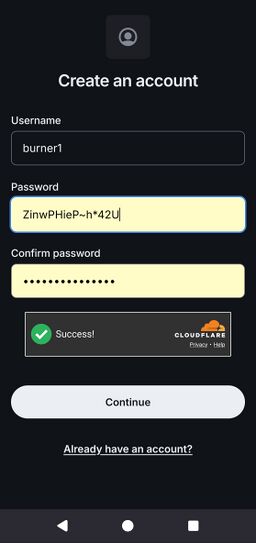
- Click continue. Don't panic if this takes a while to load, this is my own hardware in my home so it may well take a bit longer than enterprise servers like WhatsApp or Discord to register your Account.
- Choose your Display Name, this is what will be shown when you Chat. however your username is still visible to people. Click Continue again on the "Continue to Element X Page", I don't know why the app asks you to press continue so often :).
- If it asks whether you want to send analytics or not, it's up to you. If you're in doubt at all about it simply select "Not now".
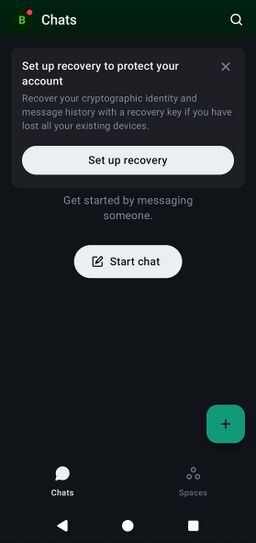
- On your initial sign in you will be prompted to set up recovery keys as shown, click on the Set up recovery button.
- Save your recovery key somewhere safe, be that as a note in your Password Manager, or in your physical documents. This is used to recover your account if you lose it or your device.
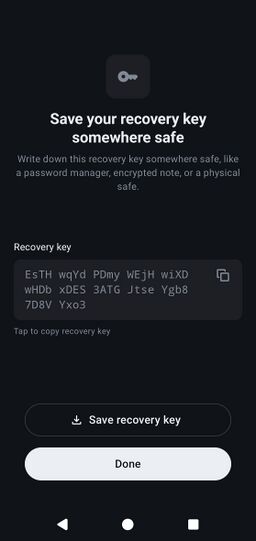
DO NOT SHARE YOUR RECOVERY KEY WITH ANYONE. I can show this one because the account linked to it has been deleted. - You will now be greeted by the regular Start Screen. Select "Start Chat" to be greeted by a Search Bar. Search for your contacts here by username, upon selecting them from the list you will be able to start chatting normally.
I cannot access your messages as the server owner unless your chat bar explicitly states "Send an unencrypted message", and even then I just... won't. - To join a Room you need an invite link unless it is set to public (Public Rooms may not be working currently, we are investigating. until then message someone for an invite link). If it is set to public you can access it by searching specifically for the room address after selecting "Public Room" in "Start Chat". For example our general public room is
#pubGeneral:atarkacomms.org. If you need any further assistance, just ask there :D.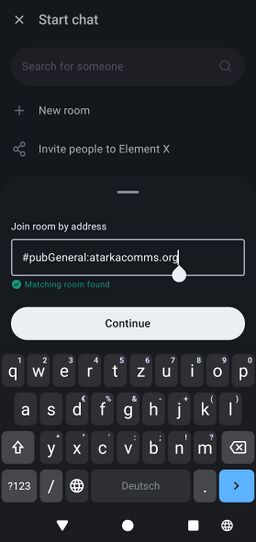


Web Client
A simple but surprisingly solid Browser App, very usable if I'm on the go and using someone else's machine (such as visiting family). Of course most will just use their phones, but i prefer typing on a keyboard and looking at a big monitor when possible.
- Navigate to chat.atarkacomms.org. Click Continue.
- You will be met by a Sign in Screen, Click "Create Account".
- Create your account, as I did with burner2 here. Note that your username is what you log in with, you can set a different Displayname later. In my case this means I used "lasse" as my username because it's easy to type, but I use "Lasse Ker'Khan" as my Displayname. If you're going to use your Real Name, be aware anyone on the atarkacomms server can see your username, so probably stick to first name like I did (In case you didn't guess Ker'Khan is made up :D). Please use a secure password.
Burner accounts have been deleted, hence why I can safely show you passwords and later on keys to these accounts.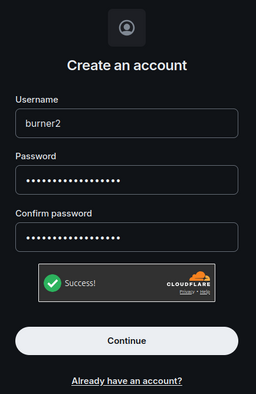
- Click continue. Don't panic if this takes a while to load, this is my own hardware in my home so it may well take a bit longer than enterprise servers like WhatsApp or Discord to register your Account.
- Choose your Display Name, this is what will be shown when you Chat. however your username is still visible to people.
- You should now be on the start screen, with an avatar in the far top left, most likely a circle with the first letter of your username. Click that and select "All settings".
- In the bar on the left navigate to "Encryption", click "Set up recovery", and then "Continue".
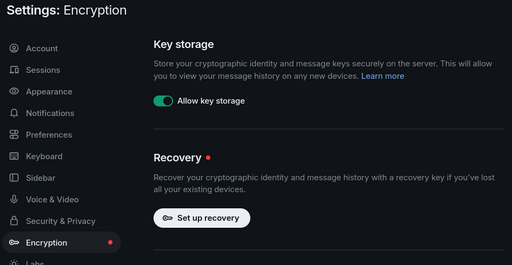
- Save your recovery key somewhere safe, be that as a note in your Password Manager, or in your physical documents. This is used to recover your account if you lose it or your device.
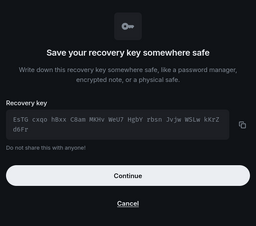
DO NOT SHARE YOUR RECOVERY KEY WITH ANYONE. I can show this one because the account linked to it has been deleted. - Copy the Key to your computer's clipboard with ctrl+c. Click "Continue" and paste the key with ctrl+v. Highlight any random bit of text and copy it to clipboard with ctrl+c. This is to remove your key from your clipboard so you don't accidentally share it.
- To start a chat with another user, use the "Start Chat" button shown below, it should be as simple as typing their username in, selecting them from the list and messaging away.
I cannot access your messages as the server owner unless your chat bar explicitly states "Send an unencrypted message", and even then I just... won't.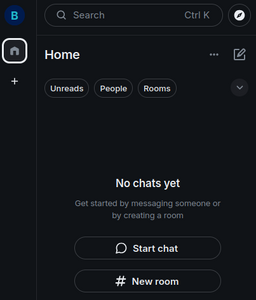
- To join a room you need an invite link unless it is set to public (Public Rooms may not be working currently, we are investigating. until then message someone for an invite link). If it is set to public you can access it by searching specifically for the room address after selecting "Public Room" in the top left search bar. You must use exact terms, for example to join our general public room you use
#pubGeneral:atarkacomms.org. If you need any further assistance, just ask there :D.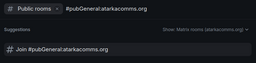


Desktop Client
This is verified working on Linux and Windows, You must get it from their website, at least on Linux Mint, as the one in the Software Repository is version 1.21.9, you need 1.21.10 for Voice and Video functionality. Available along with installation instructions here: element.io/en/download. I'm assuming if you're using the desktop client you're competent enough to switch partway through to the Web Client guide as it's practically identical from a point onward and it's pointless for me to type exactly the same thing out twice. :)
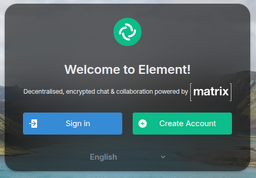
- You will be met by this start up page, select Create Account.
- This is the biggest difference to the web client. Since the web client runs on my server it known atarkacomms.org inherently. Select Edit on the right of the screenshot below, and enter
matrix.atarkacomms.org.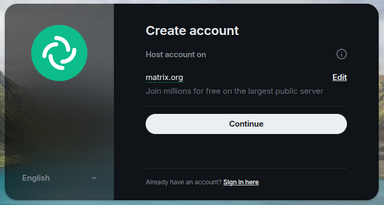
Click Continue twice, check your spelling if it didn't work, or use the web client and ask for help :D. - Continue from the Create Account section with the web client, the User Interface is practically identical.

